Upgrading the motherboard, adventures in raid
Reflection on upgrading my motherboard, and instructions on how to migrate an exiting RAID array

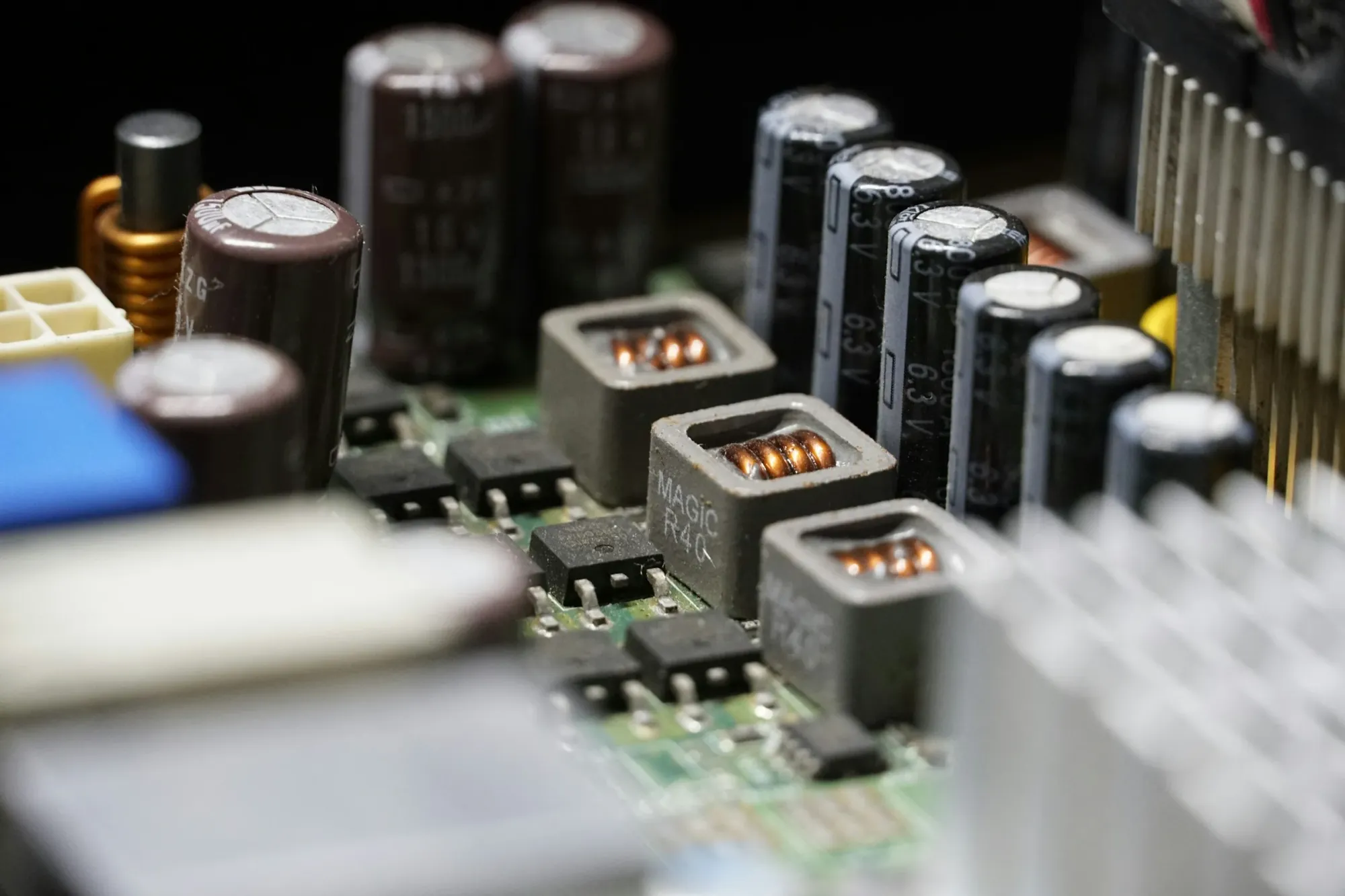
My main system at home has always been fast, especially after I dropped in an Intel quad-core extreme processors. The only problem that I've had is that occasionally it was bit unstable, and always at precisely the most inopportune of times. For the longest time I believed the memory to be the culprit. I tried slowing down the timings and adjusting a few other parameters, but to no avail. Eventually I did some more research and found out that the voltage regulators on my motherboard were not up to par. The motherboard documentation stated clearly that it supported quad-core processors, but as it turns out, ASUS only meant non-demanding quad-core processors. There was no point in upgrading anything else on my system, so I picked up a new motherboard to fix the issue, namely the Gigabyte GA-EP45-UD3P. After completing the upgrade I'm extremely happy with the new motherboard: The system is stable, runs significantly cooler than before, there is a lot less noise on the audio channels, and I was able to push the chip and memory frequencies significantly without even trying. Completing the upgrade however proved to be quite an adventure.
I'm not a newbie when it comes to putting systems together. I've been building my own system for well over ten years, but this was the first time I had to migrate a RAID array from one motherboard to another. If you have done this before some of the below might seem obvious, but if not, then hopefully this will save you some confusion and frustration. If you are going to upgrade your motherboard and then install the operating system from scratch then this guide is not for you either, since that procedure is well documented on the web. On the other hand, if you intend to simply migrate your RAID array and don't want to reinstall anything then read on.
First, you might think that simply connecting the drives to the motherboard and setting your preferred RAID option in the motherboard's BIOS might do the trick. But you will quickly realize that is not the case, since in addition you also have to configure the onboard RAID controller to recognize the drives as a RAID array. This in turn will cause you to lose all the data on the existing drives – which is precisely what you don't want. Instead, what you will need is an extra drive to complete the process. I've read through some documents about how to accomplish this feat without an extra drive, but trust me, it is rather complicated and error prone. Here is the important part, if your extra drive is an internal drive, it must be connected to a different onboard controller than the RAID array. Why? Well, as I've learned the hard way, if it is connected to the same controller and you enable the RAID option on that controller you will be in for some pain. Even if you configured your BIOS to not boot from the RAID array, but from the extra drive instead, Windows will still look for the RAID driver during boot-up - but it will not find it. The result: a quick blue screen of death and an infinite reboot loop that can be frustrating to debug. You might be able to avoid this if you manage to install the RAID driver for your controller ahead of enabling the RAID, but as I've found out with the Intel RAID drivers: if RAID is not enabled in the BIOS the driver will refuse to install. With this little hint out of the way, here are the steps.
- Clone your RAID array to the extra drive using your favorite utility such as Acronis TrueImage, Norton Ghost, etc. I would recommend you do this before swapping the motherboard. It is always a good practice to make a backup before making any major changes.
- Disconnect your RAID array and make sure you are able to boot from the extra drive. If is an external USB drive, make sure your new motherboard supports the option of booting from a USB drive.
- Install your new motherboard and connect the drives that will be part of the RAID array. Also connect your extra drive. As mentioned before, if your extra drive is an internal drive, make sure to connect it to a separate controller. This is NOT the same thing as to a separate port on the same controller.
- Boot your system and use the appropriate key strokes to enter the RAID controller configuration screen. Configure your RAID array as desired. CAUTION: This will wipe the data from the RAID drives so make sure the extra drive is NOT part of this array.
- Restart your system and boot into Windows. Your system should boot from the extra drive and once Windows starts up it ought to recognize the RAID controller and ask for drivers to finish the installation.
- Once back in Windows, clone your extra drive back onto the RAID array which should now be accessible to the OS.
- Disconnect the extra drive and restart your system. If everything went well, your system should boot from the RAID array without any issues.